1.6. Supercomputer Configuration
| download: | pdf |
|---|
With MedeA’s 3-tiered architecture you can submit compute tasks to your local computer, workstations, or remote compute clusters. The last is an ideal solution for compute intensive tasks. As long as you have a working queueing system and a submission script in place, which you can use to run calculations on the remote compute cluster, it can be quite simple to leverage that via the TaskServer.
1.6.1. Before You Start
Install the JobServer and the TaskServer on a shared file system, visible to all compute nodes served by the queuing system. The most robust way is to install the entire MD directory tree there, which includes the MD/Linux-x86_64 or the MDWindows-x86_64 directories which contain libraries and executables for MPI and MKL. In many instances, similar libraries are already installed on your cluster.
Warning
MedeA GUI, JobServer, and TaskServer must be on the same MedeA version.
Double check that the working directory, as set in the TaskServer’s web interface, is also on a shared file system.
Ensure fast and reliable communication between the nodes running the JobServer and the TaskServer
1.6.1.1. Install TaskServer on the Computer Cluster
Please consult with the HPC IT team whether you are allowed to install the JobServer and the TaskServer as services or daemons running in the background. If not allowed, you can still install the JobServer and the TaskServer as a program that can be started manually. To start the the JobServer and the TaskServer manually run the debugJobServer and the debugTaskServer scripts in the MD/2.0/JobServer and MD/2.0/TaskServer, respectively.
Warning
The JobServer and the TaskServer must be running for the entire duration of the calculation.
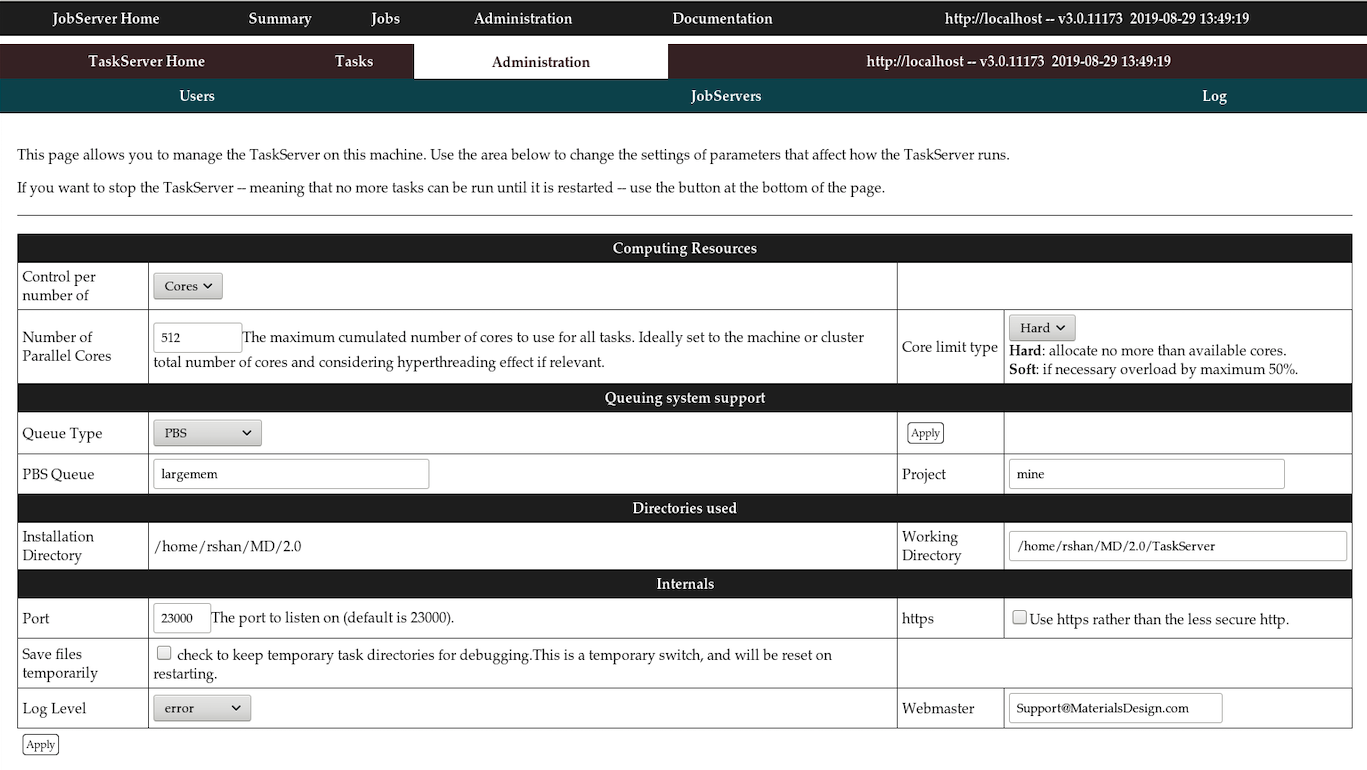
1.6.2. Configuring a TaskServer to Use an External Queue
For use with an external queuing system like PBS, LSF, GridEngine, etc, the TaskServer takes the role of a queue filter. Compute tasks are submitted to the queuing system that handles the computation in serial or parallel mode. Concepts and configuration of queuing systems are outside the scope of this document, as settings and procedures can vary between systems. We expect you to know how a specific queuing system works and what settings need to be redefined in the queue submission script.
MedeA provides a few template scripts that can be modified to suit your specific settings. Some flags like e.g. the number of processors to use, the queue type and a project name can be set through the TaskServer administration interface. Other parameters may need to be set directly in the queue specific script by the user. This procedure is feasible for any type of queuing system. Below we give an example for the LSF queue and VASP 5.3.3.
1.6.2.1. Test a Queue Submission Script to be Used with the MedeA TaskServer
The first step is to let the TaskServer automatically create a queue submission script for a given task. To achieve this, do the following:
- Create the queue setup script in <Install_dir>/MD/2.0/TaskServer/Tools/ by copying the file <queue>_template.tcl to <queue>.tcl. Take the LSF queue as an example: cp templateLSF.tcl LSF.tcl
If you are working with a queuing system other than LSF, GridEngine, SLURM, or PBS, you need to create a file <your_queuing_system_name>.tcl based on template<your_queuing_system_name>.tcl. You will need to modify this script to match the relevant queue submission commands on your machine. Note that the queue type is case sensitive, so the names in the two previous steps need to match exactly, LSF.tcl is not lsf.tcl.
Login to the TaskServer machine and on the TaskServer admin page
http://localhost:23000/ServerAdmin/manager.tml
Note
localhost above can be replaced with your TaskServer’s hostname or IP address
Set the Queue Type to e.g. LSF and confirm with Apply
With these settings, the TaskServer will look for a file LSF.tcl in the directory <Install_dir>/2.0/TaskServer/Tools/> where <Install_dir> is the MedeA install directory (default is C:/MD under Windows or /home/<username>/MD under Linux).
On the TaskServer admin page, under http://localhost:23000/ServerAdmin/manager.tml check the box Save files temporarily to keep temporary files on the TaskServer machine during testing.
Note
When restarting the TaskServer during testing, this option will be changed back to the default. Click Apply or hit Return
The updated page will show entries LSF Queue and Project. You may have to set a LSF Queue name and/or a Project variable depending on your LSF queue settings
Select an option for Control per number of. This option determines how many Cores or Tasks you would like to run in the LSF queue at the same time. The LSF queue will handle this parameter depending on your resources.
Test the configuration by running a simple job from MedeA (make sure you submit to the TaskServer you have just modified)
You can look at the output on your TaskServer machine by browsing to http://<|taskserver|>:23000/Tasks/ and clicking on the new task directory created by your task (it is not deleted after task completion as we have set the corresponding flag on the TaskServer admin page). stdout contains message and errors from submitting to the queuing system, VASP.out contains the output from VASP, while LAMMPS.out , Gibbs.out and Mopac.out are used with other codes.
- Open the text file taskxxx.sh (where xxx stands for the task number) and check the commands that have been submitted to the LSF queue. A good way to optimize the testing procedure is to use this file to submit test jobs manually on the command line. If you need to set additional options for the queuing system, you can try them out using this file. Once you are sure what parameters to use you can add them to the section of LSF.tcl where the script is written, so next time you submit a task these values will be set.
Note
The setup of LSF, PBS, GridEngine, SLURM, HPC depends on your system and is not controlled by the MedeA TaskServer. The TaskServer simply passes on these values to the queuing system. If your queuing system is not configured correctly, e.g. to run in parallel, these values will have no effect.
1.6.2.2. Basic Workflow in <Queue>.tcl
<Queue>.tcl file is a tcl code file that executes when the TaskServer is trigger by the JobServer. This file contains string variables that contain placeholders % %. These place holders are replaced using the regsub command to produce the submission script that submitted to the queue.
- Creation of a basic script to run VASP, LAMMPS, GIBBS, or MOPAC.
- Find the right executable (if there are different versions as for|vasp|)
- Replace placeholders like %LIB_PATH% in the basic script with
- Full paths, number of nodes, actual scratch directory.
- Specification of submission command (such as qsub, job, bsub) and
- Submission.
- Waiting for results and transfer back to JobServer.
Here is an example section for the PBS queue, as used for VASP:
set script {#PBS -S /bin/bash
#PBS %NODELINE%
#PBS -o %DIR%/%OUTPUT%
#PBS -e %DIR%/%ERROR%
#PBS -r n
#PBS -v P4\_GLOBMEMSIZE=100000000
#PBS -v PATH=%PATH%
#PBS -v LD\_LIBRARY\_PATH=%LD\_LIBRARY\_PATH%
#PBS -V
cd %DIR%
echo "Running %CODE% on %NPROC% cores on $NNODES nodes:"
echo " Using executable %EXE%"
echo "On nodes"
cat $PBS\_NODEFILE
echo ""
%RUN%
touch finished
}
This file contains only PBS arguments, changing to the actual task directory, copying two input files, and running the proper executable with the required libraries.
The TaskServer defines the respective placeholders.
%DIR% the actual task directory %RUN% the executable with full path (vasp, vasp_parallel)-including mpirun if needed %EXE% the executables with full paths %LD_LIBRARY_PATH% the LD_LIBRARY_PATH: includes vasp, MKL, and MPI %CODE% as short description for the code (like VASP) %MPIOPTION% options for pinning or selecting a specific fabric %TASKID% the task number %JOB% the job number %PREAMBLE% any commands required before starting the executable %OUTPUT% the output file %ERROR% the error file %NPROC% number of processors %QUEUE% queue as defined on TaskServer’s web interface %PROJECT% and optional project name (for some queuing systems)
Hint
When debugging the <Queue>.tcl file it is best to get the submission script working first, then make changes to the <Queue>.tcl file.
- Point your browser to the TaskServer admin page (http://localhost:32000/TaskServer/ServerAdmin/manager.tml?server=1) and check the box “Save files temporarily”
- Submit a new job from MedeA to the queue
- On a terminal go to the task directory
- Submit the submission script “TX.medea….” from the command line to the queue using sbatch or srun
- Study the error message and examine its responses on the queue and modify the TX… script accordingly
- Make any necessary changes and reflect the changes to <Queue>.tcl when you have a successful TX… script.
1.6.2.3. Path to Submission Command:
If the TaskServer is on a shared file system (throughout the entire cluster) there is not much work required. Just check that queue commands such as qsub, bsub, sbatch, qdel, bdel, scancel, etc, are in the path - or set with absolute path inline. E.g.
set “qsub /full_path_to_qsub”
1.6.2.4. Use a Local Scratch Directory with VASP from Global Directory
To use a node-local scratch directory (/scratch) add some lines to the script
cd %DIR%
mkdir /scratch/task%TASKID%
cp * /scratch/task%TASKID%/
cd /scratch/task%TASKID%
...
%RUN%
cp * %DIR%/
touch finished
1.6.2.5. Manually Transferring Files
If neither of the above two installation scenarios is an option, an alternative is to manually transfer files to and from a remote system, doing the work of the TaskServer by hand, hence a “manual” type. This is a good option for a limited number of large calculations.
Hint
Manual TaskServer is not an ideal solution for MT, TSS, Phonon, and HT jobs as these jobs usually contains tens to hundreds of computing tasks. It would be laborious to manually transmit hundreds of tasks to the remote computing resource.
- Start the Maintenance program and continue with Manage Services or Manage Daemons
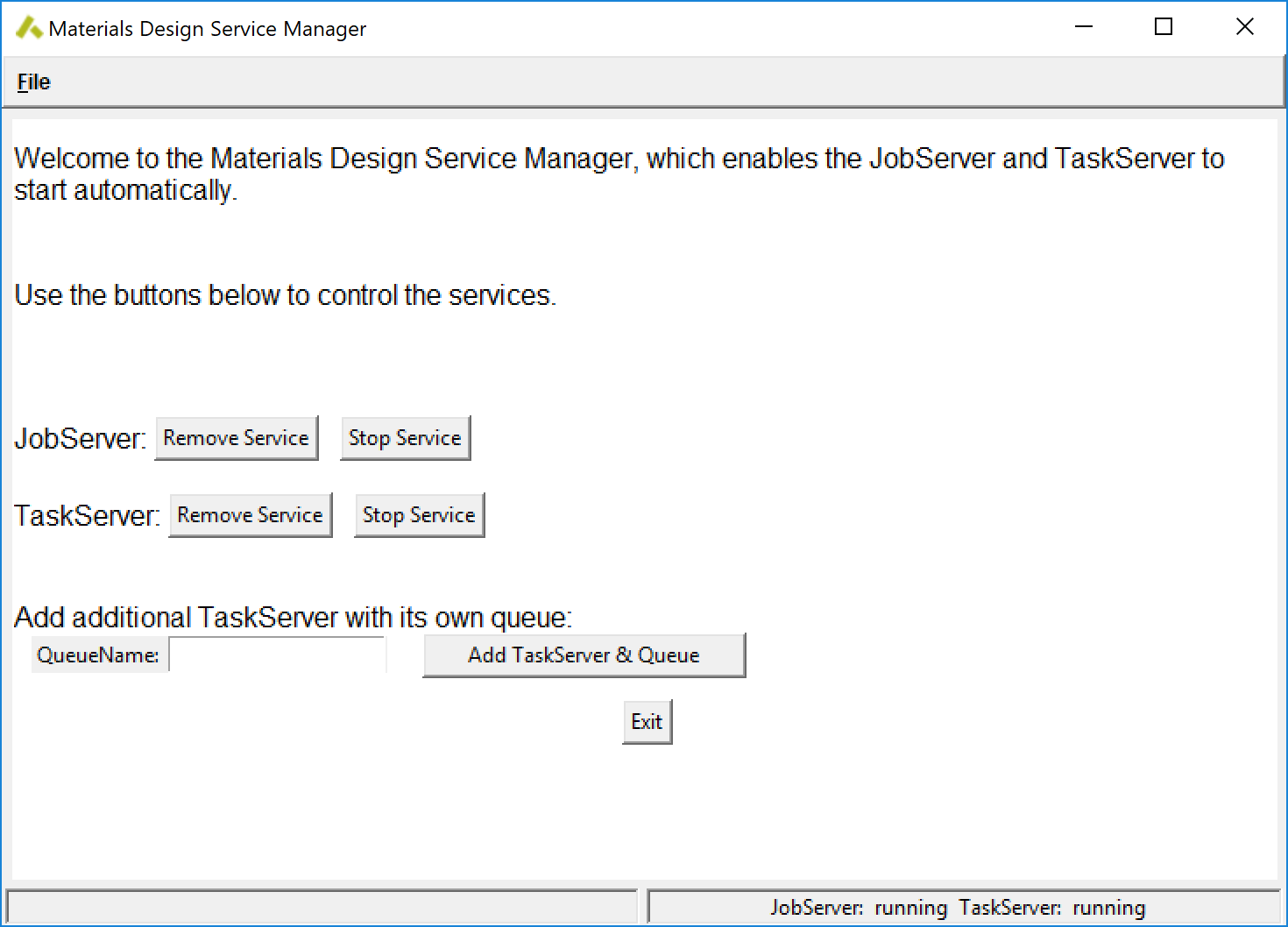
- Enter manual for queue name and click on Add TaskServer & Queue to generate a new TaskServer, a new queue named manual and assign the TaskServer to this queue.
Note
This requires a successful installation with both JobServer and TaskServer running.
- Confirm with Apply.
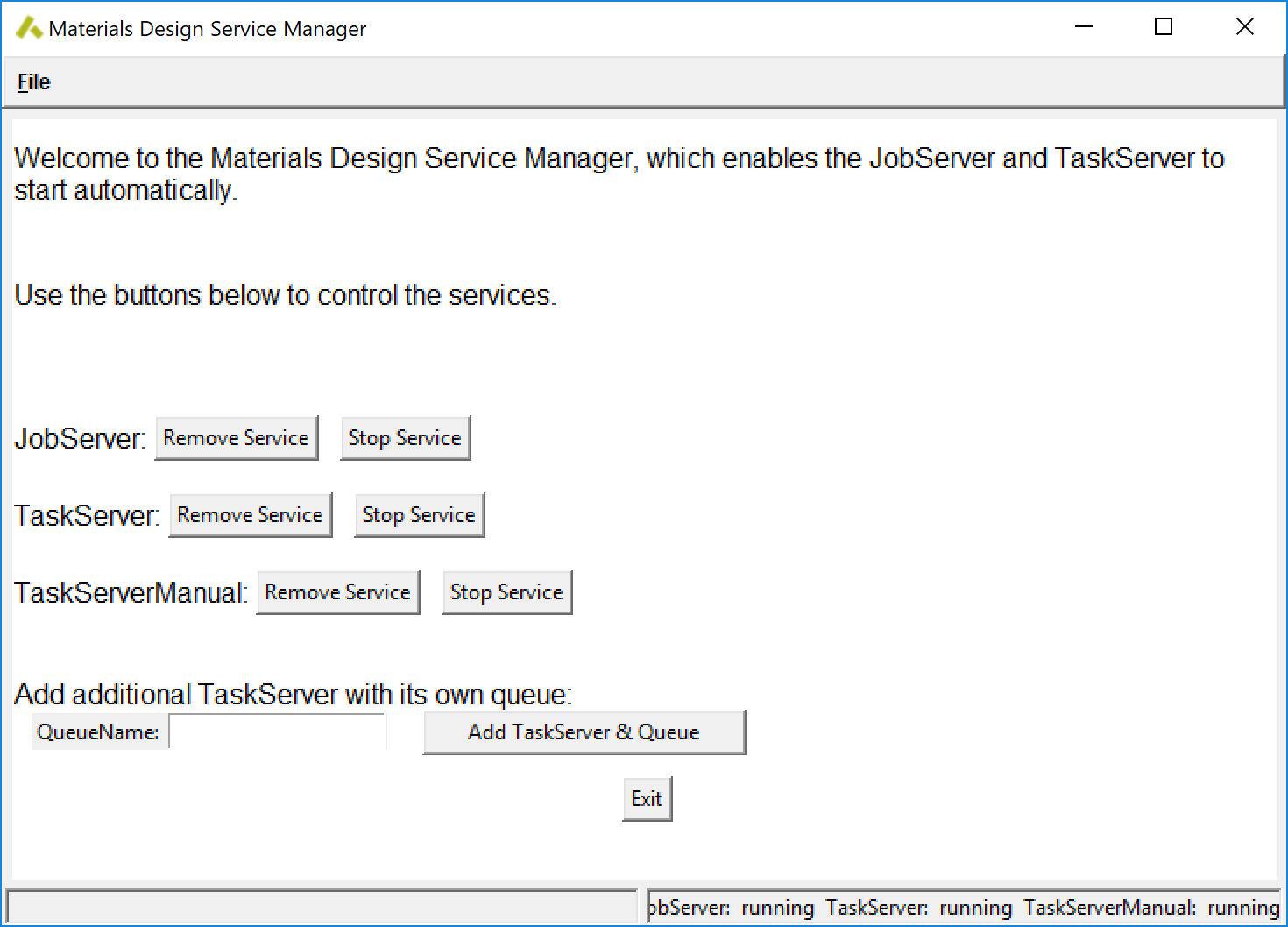
1.6.2.6. Using the TaskServer in Manual Mode
- Preliminary Steps as outlined in the previous section:
- Use the Maintenance program and select option Manage Services or Manage Daemons
- Add a TaskServer named manual.
- Select queue manual when submitting a job
- The JobServer creates all required inputfiles on the local TaskServer in ~/MD/2.0/TaskServer/Tasks/task00XXX, but instead of launching the calculation waits patiently till the file DeleteWhenDone.txt is removed.
- Find the tasknumber XXX of the newly created Job YYY on its status page http://localhost:32000/jobStatus.tml?id=YYY
- Manually transfer the input files from ~/MD/2.0/TaskServer/Tasks/task00XXX to the target machine
- Run the calculation on the remote machine
- Transfer all output files back to the task folder
- Delete DeleteWhenDone.txt
- The JobServer processes the results and, depending on the type of calculation, creates Trajectory, BandStructure, Density of State to be visualized in MedeA.
Note
Run some test calculations to understand how the JobServer and TaskServer work. Many VASP jobs require 2 or 3 tasks to generate all the result files needed.
It is necessary to keep track of ongoing calculations and copy results back to the originating task directory.
For VASP tasks, you can only modify input parameters specifying parallelization options (namely NPAR and NCORE) but not change the structure or type of job. There are no limitations for other codes.
1.6.2.7. Configure JobServer and TaskServer
- JobServer
On the job server web page, go to the Administration/Queues section and set the number of processors to an appropriate number. Note this number is just a default value and users can change the number of cores for each of the jobs during submission.
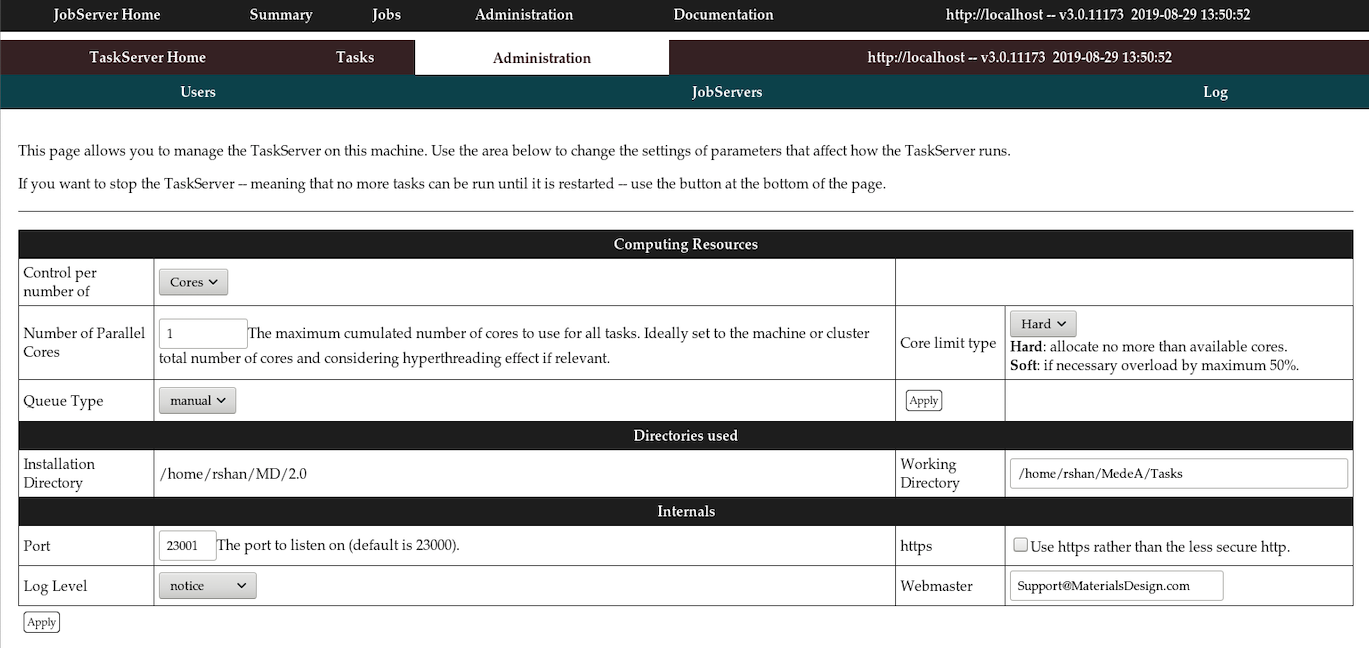
- TaskServer
Go to the TaskServer admin page (e.g. http://localhost:23000/ServerAdmin/manager.tml on your local machine)
Set Number of Parallel Cores to the maximum number of cores you want to use in parallel.
| download: | pdf |
|---|