1.2. Installation and Basic Operation
Contents
| download: | pdf |
|---|
1.2.1. Installation Scenarios
1.2.1.1. Introduction
MedeA’s tiered architecture lets you combine components in a number of ways thus adapting to the needs of your specific compute environment. Here are a few scenarios of how to install the software:
1.2.1.2. Single Machine
In a stand-alone configuration, MedeA runs on a single Windows or Linux machine having one or multiple processing units (e.g. multicore CPUs). All components, that is the graphical user interface, the structure databases, JobServer, (and job databases) and the TaskServer are installed on this machine and all computations run locally.
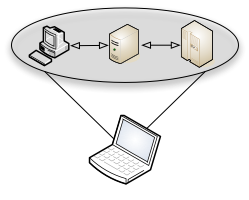
Procedure
- Download Installation medium (Windows .exe installer or ISO image)
- Mount Installation medium
- Perform Default installation
- Start MedeA
- Request license file and copy the received license file to MD/2.0
- Restart MedeA
1.2.1.3. Small Cluster
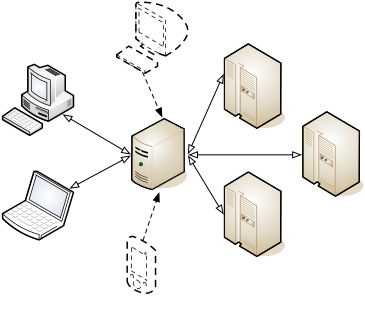
- One or more PCs, each running the MedeA GUI
- A single, central JobServer on one of the above machines or a dedicated machine
- TaskServers on some/each of the above machines, additional TaskServers on other networked resources (Windows/Linux)
- Access to the JobServer’s web interface from any smartphone or computer
There is a single, central JobServer.
Laptops can have a local JobServer to work when operating as a stand-alone single machine, but all computations on the shared TaskServer go through the central JobServer.
Procedure
Download Installation medium
Mount Installation medium to JobServer
Default installation on JobServer
TaskServers
In case TaskServer does not share the MedeA installation folder (MD/):
Mount Installation medium to JobServer
i. Custom Installation TaskServer on any TaskServer
With shared MedeA installation folder (MD/):
i. Start Maintenance Program on TaskServer and create TaskServer daemon
Mount Installation medium to the frontend
Perform Default installation
Start MedeA GUI on the frontend
Request license file for GUI
Restart MedeA GUI
Hint
You do not need a license file for computers without MedeA GUI installed which are running as JobServer and TaskServer
1.2.1.4. Larger Clusters and External Queuing Systems
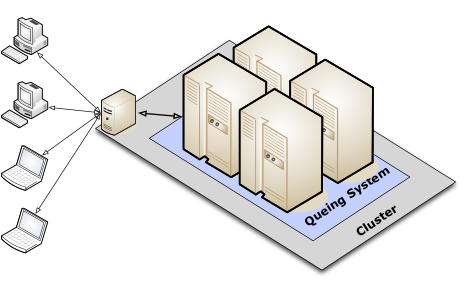
When several compute-intensive applications share the same resources, it is recommended to make use of queuing systems like e.g. PBS, LSF, SLURM, and GridEngine. MedeA’s TaskServer supports external queuing systems under Linux/Unix by providing templates for queue submission (batch) scripts.
Note that MedeA does not provide management tools for external queuing systems. You will need to adapt the template scripts provided along with the TaskServer to fit your local installation. The current implementation requires one TaskServer client per queue type and queuing system to be installed on the gateway machine that is the login or the head node of a supercomputer or massively parallel machine. Configurable scripts for the PBS, LSF, SLURM, and GridEngine queuing systems are provided for each of the computationally intensive codes (VASP, LAMMPS, Gaussian, MOPAC, and GIBBS) in relevant subfolders of C:MD2.0TaskServerTools or ~/MD/2.0/TaskServer/Tools.
Procedure
Download Installation medium
Mount Installation medium to JobServer
Default installation on JobServer
TaskServer
In case TaskServer does not share MedeA installation folder (MD/):
i. Mount Installation medium to JobServer
ii. Custom Installation TaskServer on any TaskServer
With shared MedeA installation folder (MD/):
i. Start Maintenance Program on TaskServer and create TaskServer daemon
Configure Queuing system integration
Mount Installation medium to frontend
Perform Default installation
Start MedeA GUI on the frontend
Request license file for GUI
Restart MedeA GUI
| download: | pdf |
|---|