2.3. Other Databases
Contents
| download: | pdf |
|---|
2.3.1. Materials Platform for Data Science (MPDS)
The Materials Platform for Data Science (MDPS) is a high-quality database and provides instant access to a comprehensive repository of phase diagrams, crystal structures, physical properties and the corresponding literature references for inorganic materials. MDPS is the online edition of the full Linus Pauling File (LPF), the most authoritative database of property information for inorganic materials available today.
MDPS includes:
- more than 65,000 phase diagrams
- more than 350,000 crystal structures
- more than 620,000 property values
All derived from and referenced to over 250,000 scientific publications and the database is extended continuously.
Within MDPS it is possible to
- screen large numbers of design options for materials to focus experiment
- save resources and maximize your productivity with rapid and convenient access to relevant data
- conveniently find experimental data to validate computational approaches
- create your own data-centric solutions using the MDPS Application Programmer Interface (API).
Screen the scientific literature and reported property information for any desired inorganic material in seconds. You can view phase stabilities, access densities, thermal conductivities, (and a multitude of other physical properties), and scan crystallographic literature very swiftly. MDPS will save you hours of literature research and allow you to be confident that you have surveyed the range of experimental observation for your target materials. And you can export structures and employ them as the starting point for calculations in the leading materials atomistic simulation environment, MedeA.
A trial access to the MDPS web site is possible via the menu sequence File >> Visit MPDS web site in the MedeA GUI.
MPDS, is curated and maintained by Pierre Villars, Evgeny Blokhin, and a leading team of experts in materials science and software engineering.
2.3.2. The Novel Materials Discovery (NOMAD) Repository
The NoMaD repository is a free and unrestricted service for publishing and storing the results of materials simulations. To use the service you must sign up for a NoMaD account using their website. The supported file formats and types that can be uploaded are summarized on the NoMaD page How to upload input and output files. Once signed up your NoMaD account page contains a token which is a text string of 64 alpha-numeric characters. This token, associates file uploads with your NoMaD account.
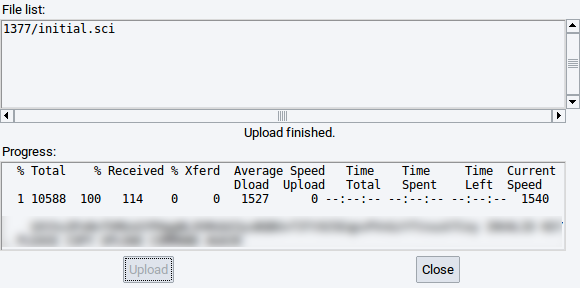
Within MedeA you can either select input and output files in a directory from disk or a previously completed job. During the upload process you will be presented with a progress dialog and, once the upload has completed, a message from the NoMaD servers. The NoMaD parsers inspect every file in the upload to locate any output files produced by any of the supported calculation codes and formats, respectively. If support file formats are detected, these output files are added to the NoMaD repository. Any output files which are not supported by NoMaD are omitted and not added to the repository.
2.3.2.1. Define your NoMaD upload token
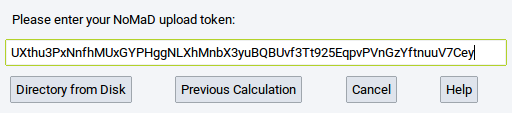
The NoMad upload token can be either set in the MedeA Preferences (accessible via File >> Preferences in the main window) or via the MedeA Upload to NoMaD dialog. Copy your token from your NoMaD account page and paste it into the relevant field. Then select whether files should be uploaded from a Directory from Disk of your computer or from a Previous Calculation stored on a MedeA JobServer.
Hint
For the MedeA JobServer is important to select the proper JobServer via Job Control >> Select Server >> …
2.3.2.2. Upload files from disk
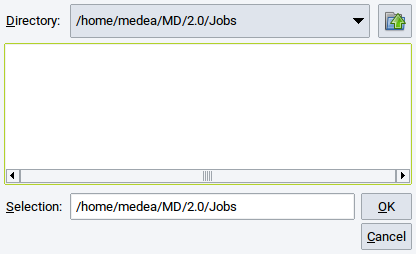
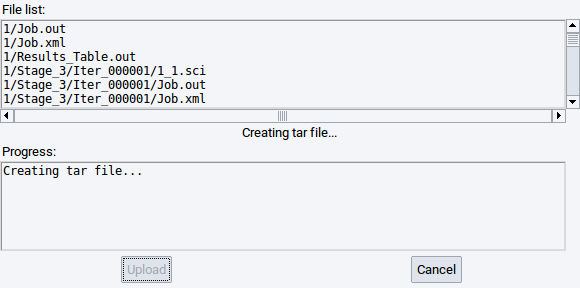
Upon selecting the option Directory from Disk a folder browser pops up to navigate to the relevant directory and to select files that should be uploaded. Start the actual upload with the Upload option.
2.3.2.3. Upload files from previous jobs
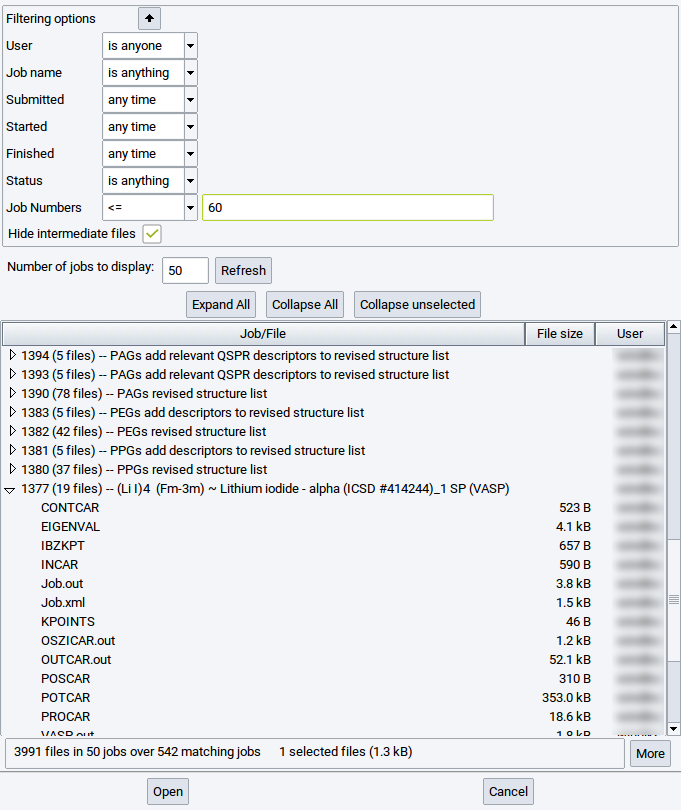
Selecting the option Previous Calculation brings up a dialog to select files of relevant jobs. Files are selected if marked with a checkmark. Confirm the selection with Open.
2.3.2.4. Monitor file upload
Once the upload was successfully started the progress is monitored. The upload is complete once the message Upload finished appears in the dialog. To continue working with the MedeA GUI click on Close.
| download: | pdf |
|---|