1.14. Performing Computations with MedeA
Contents
| download: | pdf |
|---|
The MedeA Environment includes a computational job management a system allowing the user to launch multiple jobs (and tasks) at a time, control running jobs and quickly find and retrieve data from earlier calculations.
MedeA GUI
Building models, submitting jobs, analyzing and visualizing results
JobServer
Job control, data pre/post processing and storage/management of all computational results
TaskServer
Executing individual computational tasks
During MedeA’s default installation a working configuration of MedeA, the JobServer and the TaskServer are created on the local machine. While this configuration is fully functional, you will most likely add additional JobServers and TaskServers and group them into queues.
1.14.1. Starting the MedeA GUI
1.14.1.1. Windows
Start MedeA from the Start Menu All Programs >> Materials Design 2 >> MedeA 2.0
1.14.1.2. Linux
If your desktop is properly configured, you will find a Materials Design folder application folder containing MedeA similar to the Start Menu in Windows.
You can always start MedeA as ~/MD/Linux-x86_64/MedeA.
Warning
MedeA does not support 32-bit operating systems anymore. Please upgrade your operating system to 64-bit systems before installing MedeA.
1.14.2. Launching a Job in MedeA
By “job” we refer to a single or several non-interactive (batch) computational tasks that are launched from the MedeA interface by invoking any of the MedeA modules VASP, LAMMPS, GIBBS, MOPAC, Gaussian, MT, Phonon, Transition State Search, Electronics, UNCLE, etc. Such a job is controlled by the MedeA JobServer (Windows process name: mdjobserver). All the above jobs consist of at least one computational task. The JobServer distributes all tasks to TaskServer machines. An exception is the Interface Builder job that runs directly on the JobServer machine.
To submit a job, click Run in the graphical user interface, select a queue from the pop-up windows, add optional comments and confirm with Submit
Some jobs run directly on the JobServer (like Interface Search). Here, Run submits directly to the current JobServer without invoking the Queues dialog.
Most computational Jobs consist of one or more separate tasks. A task is defined as a serial or parallel process (vasp.exe, gibbs.exe, …) running on one or more cores. A Job can consist of multiple tasks and may require additional pre/post processing of the JobServer to complete.
- Jobs with multiple tasks: Displacement calculations to derive a phonon spectrum, LAMMPS calculations of the thermal conductivity and viscosity, GIBBS calculations of an adsorption isotherm, elastic coefficients, band structure calculations, Combi spreadsheet calculations.
- Jobs with a single task: A VASP total energy calculation (Single Point), A VASP structure optimization, a GIBBS run with a single thermodynamic condition
- Jobs without tasks: an Interface Search
When you submit a job to a specific queue, MedeA figures out how many tasks need to run to complete the job. MedeA then submits these tasks to all active TaskServers available to the selected JobServer queue.
Note
If TaskServers are not active (maintenance) or not running, or if the connection to the TaskServers is interrupted (network problem), the job in question has the status running (preprocessing and task setup have started) but is unable to submit tasks until you at least one TaskServer of the queue is active and its status is up.)
In more detail, the following happens when launching a job in MedeA:
- MedeA collects information on your structure and the requested job and sends it to the JobServer, including your input on which queue (a group of TaskServers) to run the calculations.
- The JobServer receives and processes these data creating input files for one or several tasks required for the job to complete. For example, this step may involve getting VASP PAW potentials from the SQL database or setting up a number of displacement calculations for Phonon. The status of the job is now running
- Preprocessing finished, the JobServer checks the queue for the availability of TaskServers having free cores. As soon as TaskServer signals availability, the JobServer transfers input data and the task is started. If all TaskServers are busy or not available otherwise, the JobServer queues the tasks for later submission
- Each TaskServer accepts a predefined number of tasks depending on its configuration (e.g. single core, multi core etc.). All accepted tasks executed at once
- When a task has completed the data is sent back from the TaskServer to the JobServer where it is processed and stored
- Once the JobServer has received and processed all the required data to complete the job, the job status changes to “finished”
Typically the JobServer is installed as a service or a daemon, in other words, it runs as a background process and does not require direct interaction from the user to do its work. The JobServer resides either on the machine running MedeA or on a dedicated Windows or Linux server.
MedeA provides a web interface to the JobServer to let you view running or completed jobs, to change the way jobs run or to stop or restart jobs.
1.14.3. Monitoring a Running Job
To start the JobServers web interface, in the MedeA main menu, select Job Control >> View and Control Jobs. The following page comes up in your default web browser :
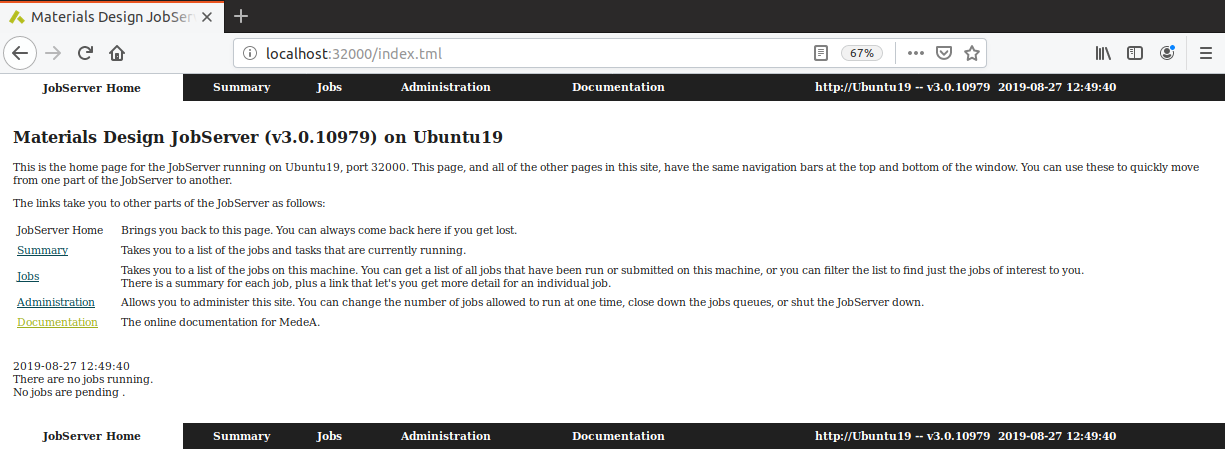
Bookmark the link to access directly through your browser’s Favorites list in the future. The JobServer Home page navigation bar (black) has many links:
JobServer Home Starting page for job controller on (default) http://localhost:32000 The JobServer listens on port 32000 and can run on a different machine than MedeA. Multiple JobServers can be configured to work with one instance of MedeA.
Summary Job/Task overview page displaying which jobs are currently running and what are their tasks. Use the job and task links on this page to browse to the job/task directory of a given job/task.
Jobs The Jobs overview page lists all jobs running or completed on the JobServer. Use filters at the top of this page to narrow down the selection.
Administration JobServer configuration page with settings like automatic restart, name and port of the JobServer machine. Consistent settings for MedeA and JobServer(s) are required.
Documentation: MedeA documentation page with users’ guide and application notes.
1.14.4. Hold / Resume a Running Job
Hold Selected stops the current job from creating more tasks.
The Task can later be resumed with
Resume Selected
On the jobs page select the job numbers (Job #) with their respective checkboxes on the very left, and at the bottom of the page click Hold Selected/Delete Selected. A job with status held will not submit any more tasks. Select a held job and click Resume Selected to continue computations.
1.14.5. Terminate a Job
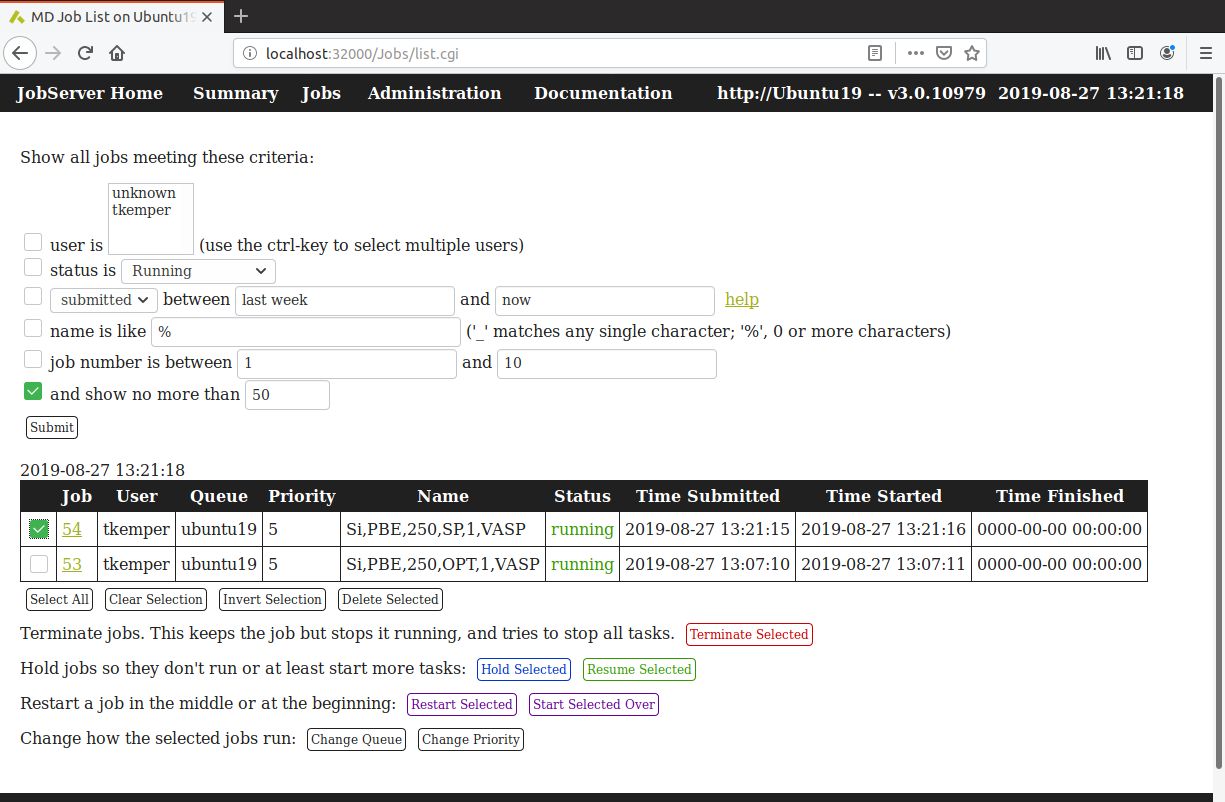
Terminate Selected stops the current job from creating more tasks and tries to stop all tasks, unless a queuing system is used. VASP calculations (tasks) can be stopped in a more nuanced way:
1.14.5.1. Stopping a VASP Task:
To stop a running VASP task click on the job number in the Jobs page and then on the Control button next to the task you would like to stop. Choose one of the following options:
Stop VASP after this geometry step - VASP will finish the current geometry step and stop. This option provides a valid electronic structure, total energy and geometry, e.g. an intermediate step in an ongoing structure relaxation. The geometry optimization is not converged, though.
Stop VASP after this electronic iteration - VASP will finish the current electronic (SCF) step and stop. No valid electronic structure and total energy will be returned, at least not a converged one. The geometry is valid, however, the geometry optimization is not converged.
Note
Terminate the task immediately - This command has a different implementation and works only on Linux. Moreover, you need to be aware that terminating a task does not interact with any external queuing systems such as PBS, torque, GridEngine and LSF.
Linux TaskServer: Kills the current task using the Unix kill command.
External queuing systems: We recommend not using this command with external queuing systems. Log in to your task server machine instead and use the queuing system specific commands to delete tasks with e.g. qdel or bkill
Delete the task from the JobServer - Use this option when
- TaskServer is unreachable due to network problems
- The TaskServer cannot notify the JobServer about finished tasks
This option returns all the files from the TaskServer to the job directory and deletes the task from the JobServer registry. The JobServer will continue to submit remaining tasks and end the job with an error due to the deleted task. You can then restart just the task in question using the restart function described in the next section.
Start the task over - Use this option only when a TaskServer is unreachable due to network problems. This option deletes the task from the JobServer registry and tells the JobServer to start it all over.
Note
Several types of MedeA jobs make use of multiple tasks, e.g. jobs launched by the modules MT, Phonon, Transition State Search, or Electronics. Also the VASP user interface launches several tasks in case of calculations employing hybrid functionals and for computing response tensors, band structures, density of states or optical spectra. On occasion, such individual multi-task jobs may get stuck and can’t advance, because one or more tasks are unable to continue, but remain in running mode. This may happen because task servers are taken offline, for example, because of network problems, full hard disks, insufficient memory, and so on, or a variety of related hardware issues. In addition, atomic configurations generated in the process may prove difficult to converge electronically. In these circumstances, it is possible to enable the MedeA modules making use of the calculated results of such tasks. So, if you detect such tasks, it is recommended that you force these tasks to be retrieved by the JobServer, allowing the MedeA modules to proceed. This can be achieved by the function Delete the task from the JobServer, which returns all the files from the TaskServer to the job directory and enables progress of the entire job.
1.14.5.2. Stopping a Parallel VASP Task:
To stop a task running in parallel mode use either Stop VASP after this geometry step or Stop VASP after this electronic iteration. If you have to kill a parallel process, please log on to the TaskServer and kill the mpi process (e.g. vasp_parallel) using an MPI command on the originating node or the kill command (Linux), pskill (Windows add-on) or the Windows task manager.
1.14.6. Restarting a Held/Interrupted Job
To restart a job that has been interrupted by e.g. a network failure or held by a user you have two options:
First option: Select the job in the Jobs page and click Restart Selected at the bottom of the page.
- The JobServer will retrieve all fully completed tasks
- The JobServer will submit all uncompleted tasks to the queue.
Second option: Click on the Job number (Job #) and then on Restart at the top of the page. In the following, dialog, you can explicitly choose which tasks to rerun and which tasks to attempt to retrieve. This option allows you to rerun specific tasks that may not have finished properly but were registered by the JobServer as completed.
| download: | pdf |
|---|