1.10. Updating an Existing MedeA Installation
| download: | pdf |
|---|
You can update your version of MedeA using an installation medium (ISO image or Windows Installer) or via the Internet. Updating MedeA will not affect any of your saved settings, results, and other user data.
1.10.1. Update from ISO image
To update from ISO image, mount the ISO image to bring up the Software Manager and select Update existing MedeA. The instructions that follow are very similar to what is described below for the Internet update.
1.10.2. Update from the Internet
To update via the internet, you will need password access to the Materials Design Update Server. If you haven’t received a password yet, send an email to MD Support to receive the update credentials (username and password). You can always retrieve or change your password at my.materialsdesign.com/user/password.
- Bring up the MedeA Software Manager by clicking on (Windows) Start Menu >> All Programs >> Materials Design 2 >> Maintenance
- In the MedeA Software manager click Update from the web
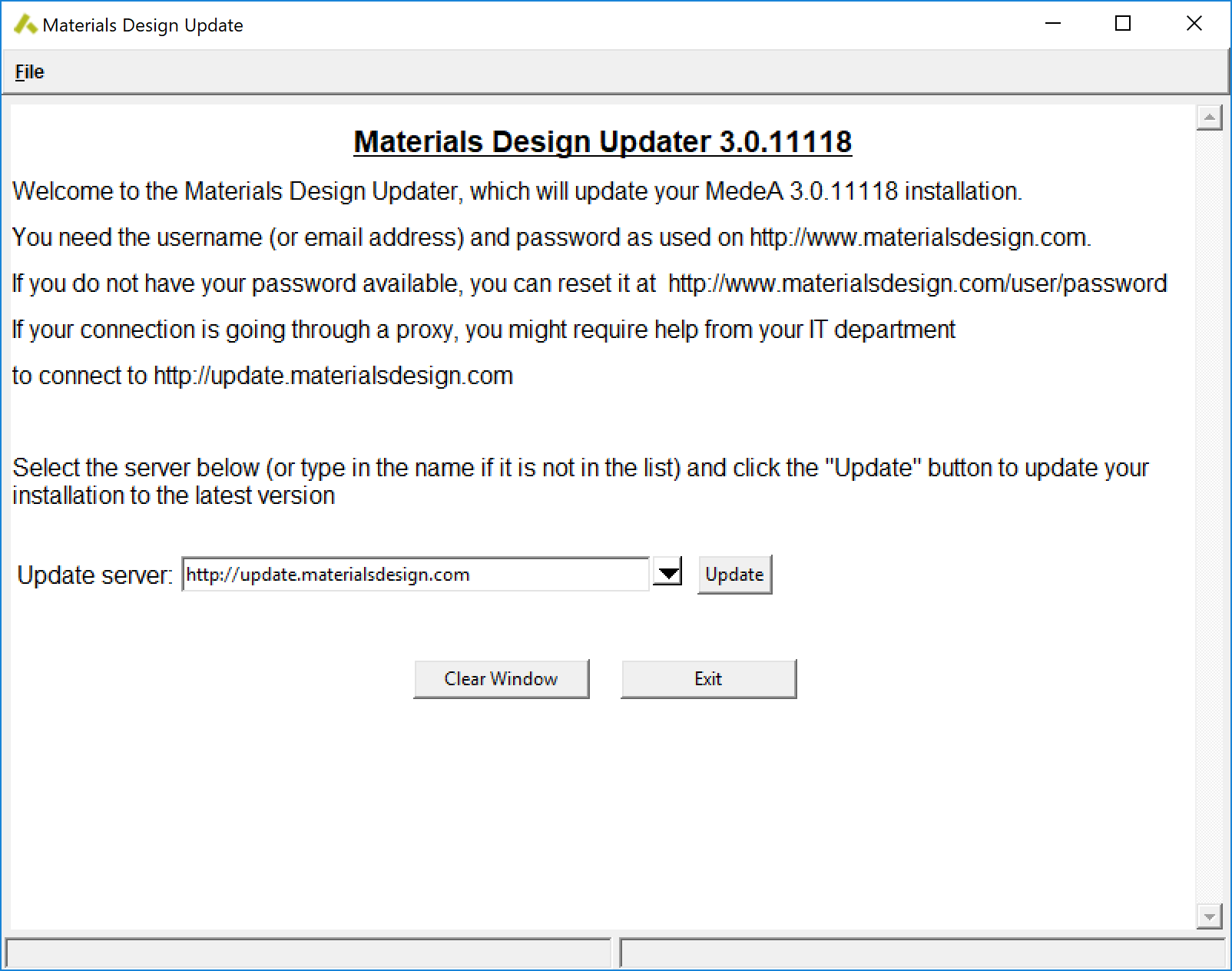
- Click on Update to continue
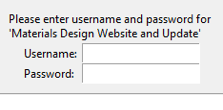
In the pop-up dialog enter as Username your user-ID or email address and provide your password, then click OK.
The Updater will compare your current installation with the MedeA disk image on the Materials Design update server. This process may take a couple of minutes.
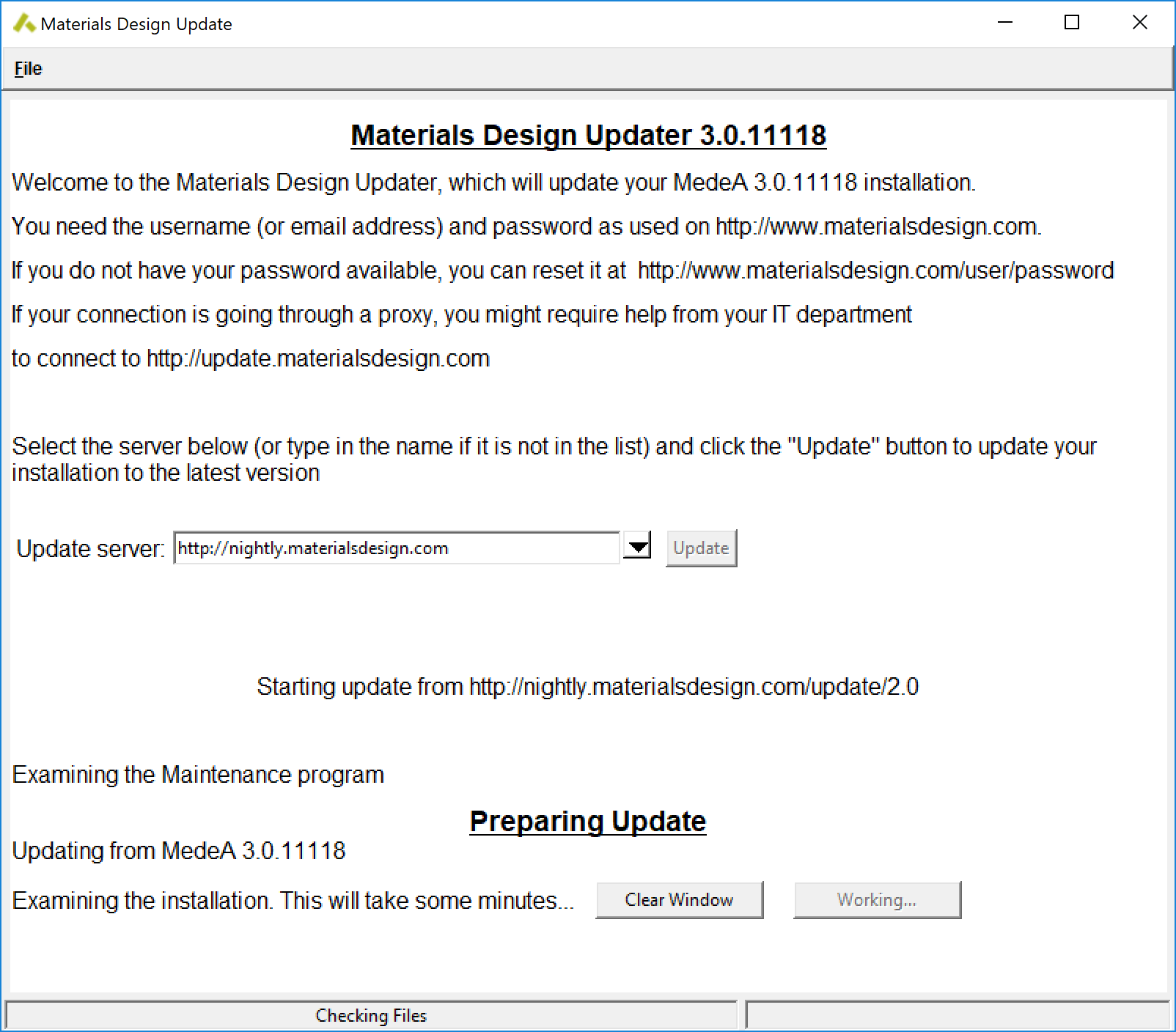
If there is a more recent version of the updater, the following message appears in a pop-up window:
There is a new version of the installer.
Do you wish to update it first (recommended)?:
Yes No
Confirm with Yes to get the Maintenance program up to date first.
Click continue to actually update the installer.
Continue Exit
Getting the following files:
./Windows-x86/MDMaintenance.exe Setup.exe – 211 changes applied.
Updating the packing list…done.
Checking maintenance shortcuts…
The… update is complete.
Finish
You need to close and re-open the maintenance program if the Updater itself was updated.
Repeat steps 1-3 above to continue the update.
The Updater displays the latest version number (MedeA 2.22) followed by the release notes and a listing of changed files, new files, and extra files. Click each button to display or hide the corresponding listing. Note that the number and type of files displayed depends on your current version of MedeA and may differ from the listing displayed below.
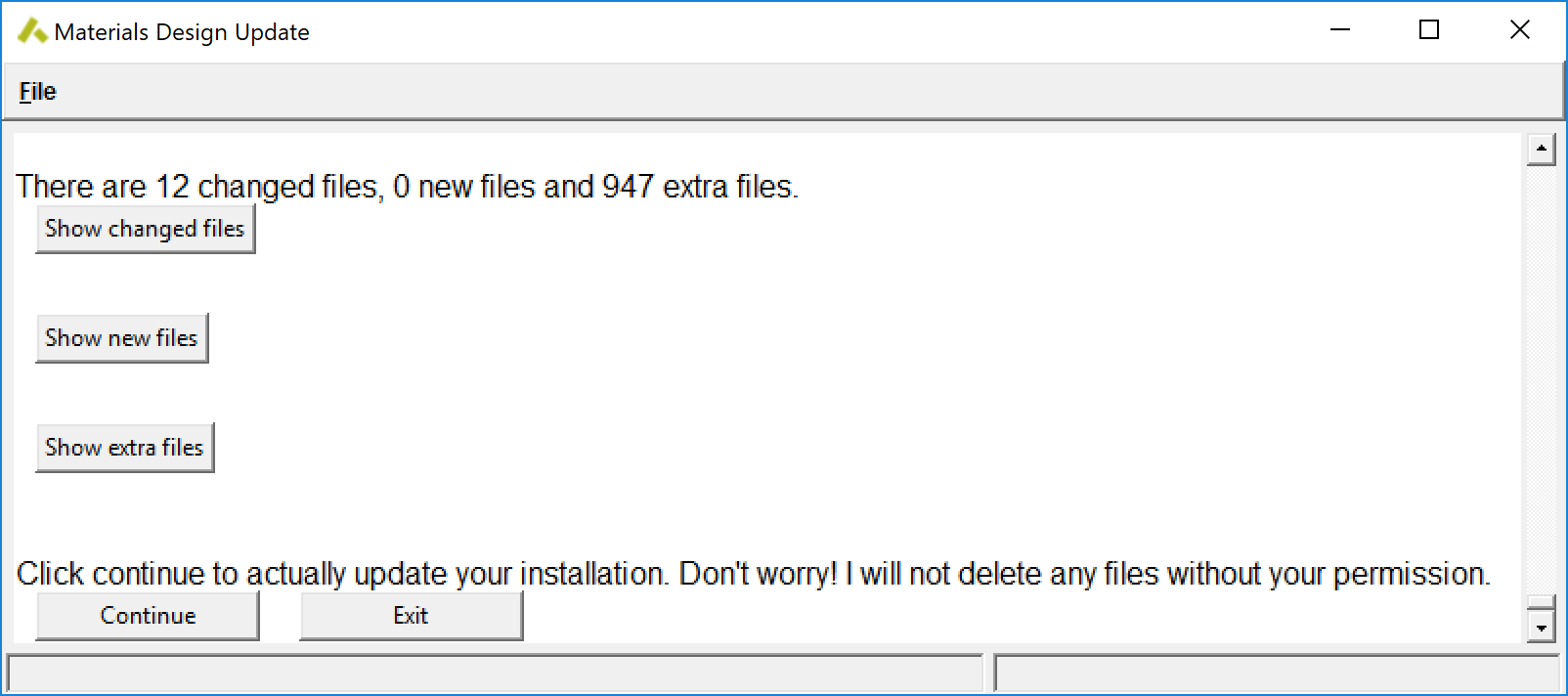
Click Continue to proceed with the update
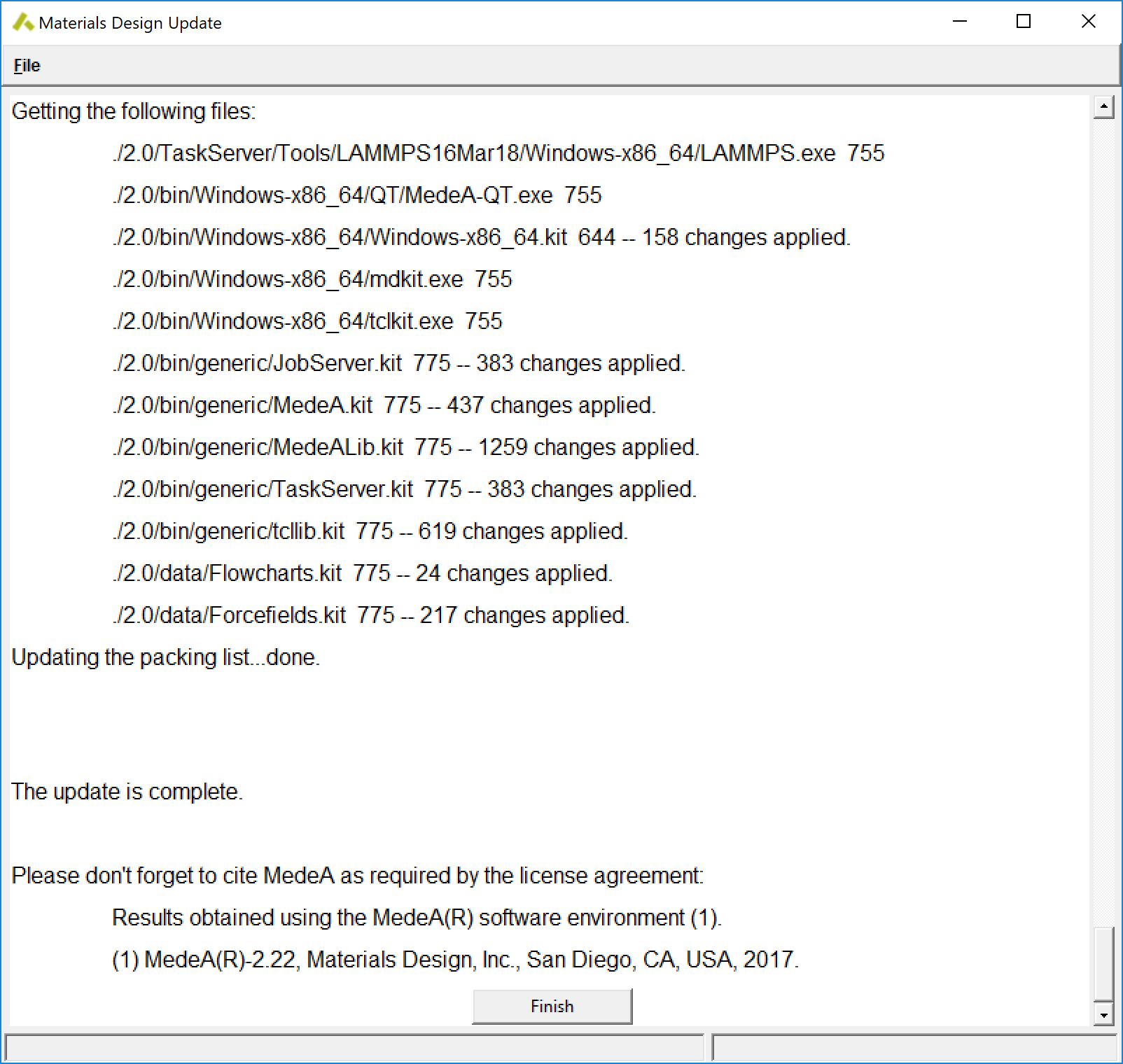
Follow the progress of your update in the installer window. If the Installer announces the download of patches e.g. for the databases, follow the instructions to install the patches. In most cases, the installer will simply update a number of files
Click Exit to terminate the Updater once the update is complete
| download: | pdf |
|---|