1.9. Using the Materials Design Maintenance Program
Contents
| download: | pdf |
|---|
The Materials Design Maintenance program is the single tool to install, update, modify and repair your MedeA installation. Depending on its location different options are available: Installation appears only on an installation medium, whereas updating, requires MedeA (or parts) to be already installed.
1.9.1. Starting the Maintenance Program
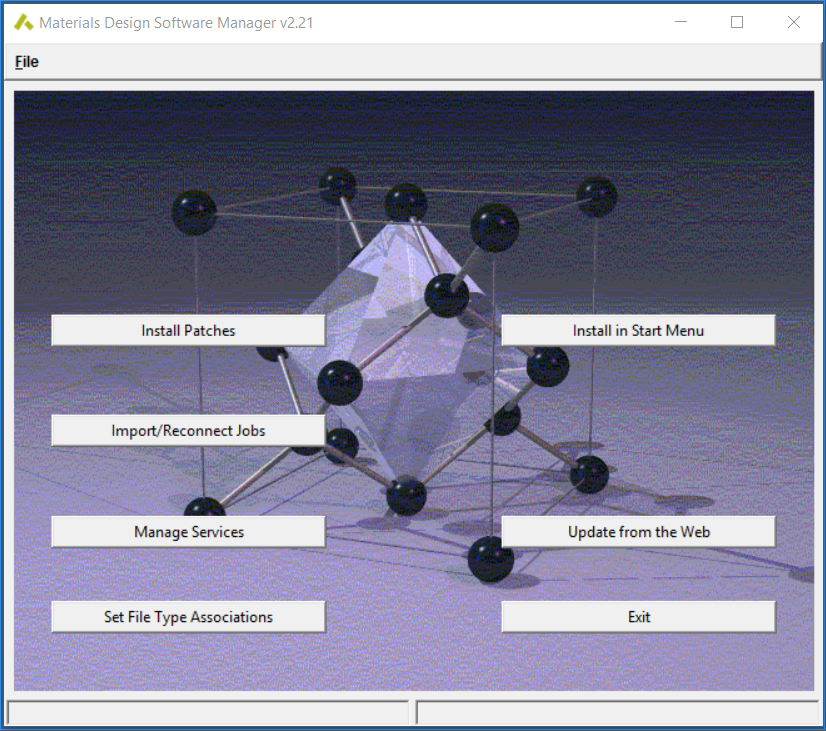
To start the Materials Design Software manager on Windows, select All Programs >> Materials Design 2 >> MD Maintenance from the Windows Start menu. On Linux the Materials Design Software Manager is the program MDMaintenance in MD/Linux-x86_64.
Install Patches
Patches allow you to update databases or modify other parts of MedeA. Patches are normally downloaded automatically during an Update from the Web, so it is rare that you will have to use this function.
Import/Reconnect Jobs
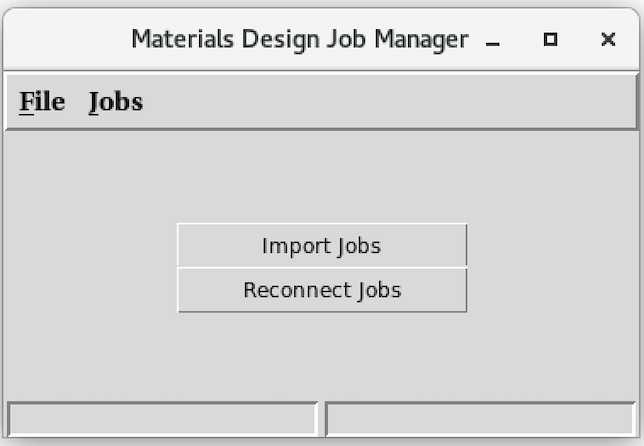
This provides an interface to import entire job directories from disk.
Use Import Jobs for job directories from a different JobServer, but keep in mind that job numbers will change. You can also import the test jobs provided in MD/Testjobs.
Reconnect Jobs takes the existing Job directory (with an empty Job database) and recreates the Job database keeping old job numbers. This is used for migrating from an older JobServer.
Manage Services (Windows) or Manage Daemons (Linux) - Requires Admin Rights
Allows you, with sufficient system privileges, to create/remove and start/stop the JobServer and TaskServer services or daemons. The lower part of the window shows the current status of the services or daemons.
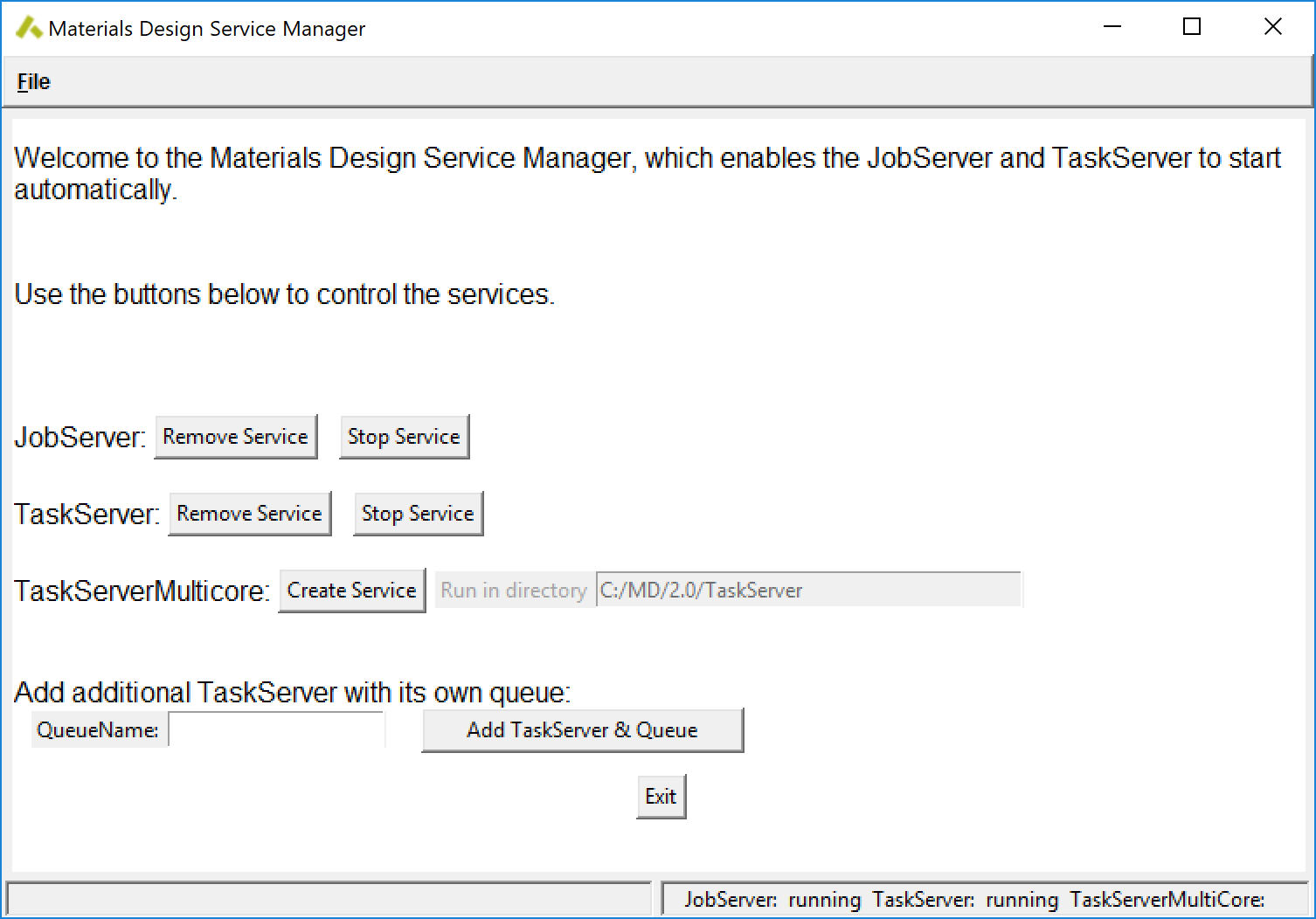
Configure with distributed memory support is only required, in rare circumstance, under Windows, where you have a dedicated network between nodes and want to deploy MPI across nodes.
Additional TaskServer/s, such as TaskServerManual, are created with Add TaskServer & Queue and require a successful installation with both JobServer and TaskServer running. You can create a secondary TaskServer, inheriting the options from the initial TaskServer. More details are in I.G. 1. Registering additional TaskServer/s with the JobServer
Set File Type Associations - requires admin rights
Configure the system to open and display .sci files in MedeA. You can simply double-click on a file and it will appear in MedeA.
Install in Start Menu
This creates shortcuts for MedeA, JobServer, TaskServer (if installed) in Start menu and desktop
Hint
Desktop shortcuts and menu entries on Linux require xdg-utils
Update from the Web or Update Installation
Update the installed MedeA software from the Materials Design update server or, if started from the ISO, the current ISO. Note that your local firewall may block the web feature and you have to open a web proxy. Detailed instructions can be found in the Installation guide.
Prepare for Installation
Generate the information for a license without installing MedeA.
| download: | pdf |
|---|