1.3. Windows Installer
| download: | pdf |
|---|
You can run the MedeA Installer with and without administrative rights. In both cases, you can choose to install just the graphical user interface (GUI), just the computing backend (JobServer and TaskServer), or a fully working configuration containing all three components: GUI, JobServer, and TaskServer.
The installer can be placed on a network drive to deploy MedeA on multiple machines. Additional databases and existing license files in the same directory will be used and included in the installation path. One requirement is that the installation drive must be SQLite-compatible.
Administrative rights are necessary to keep the computing backend (JobServer and TaskServer) running as services, so that you can log out, but calculations continue to progress. If you don’t have administrative rights, you can still start the JobServer and TaskServer manually after installation. The installer will remind you in the following way:
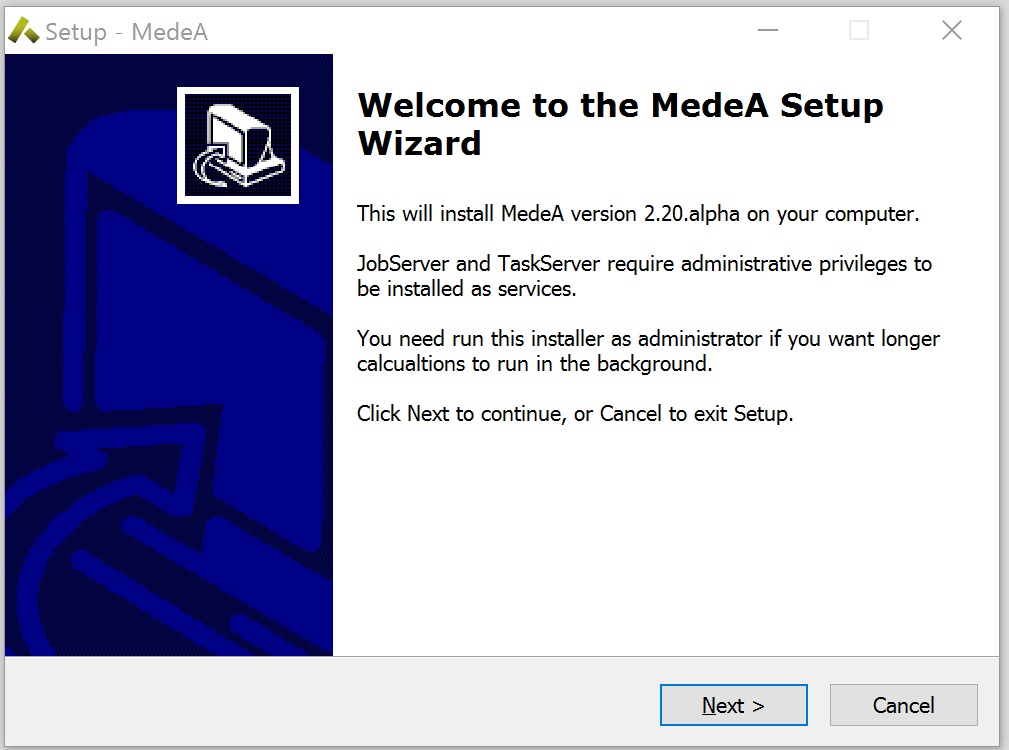
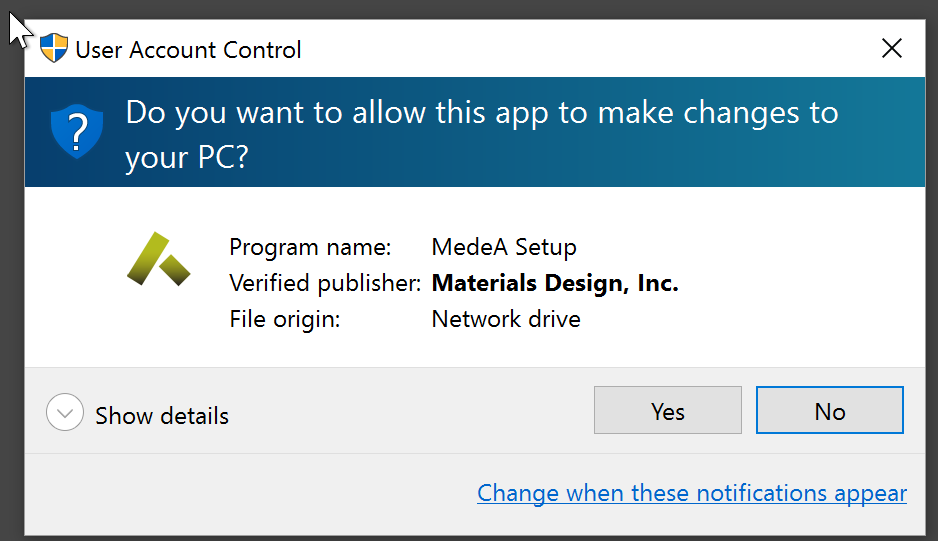
The installer is signed and verified to be from Materials Design, Inc.
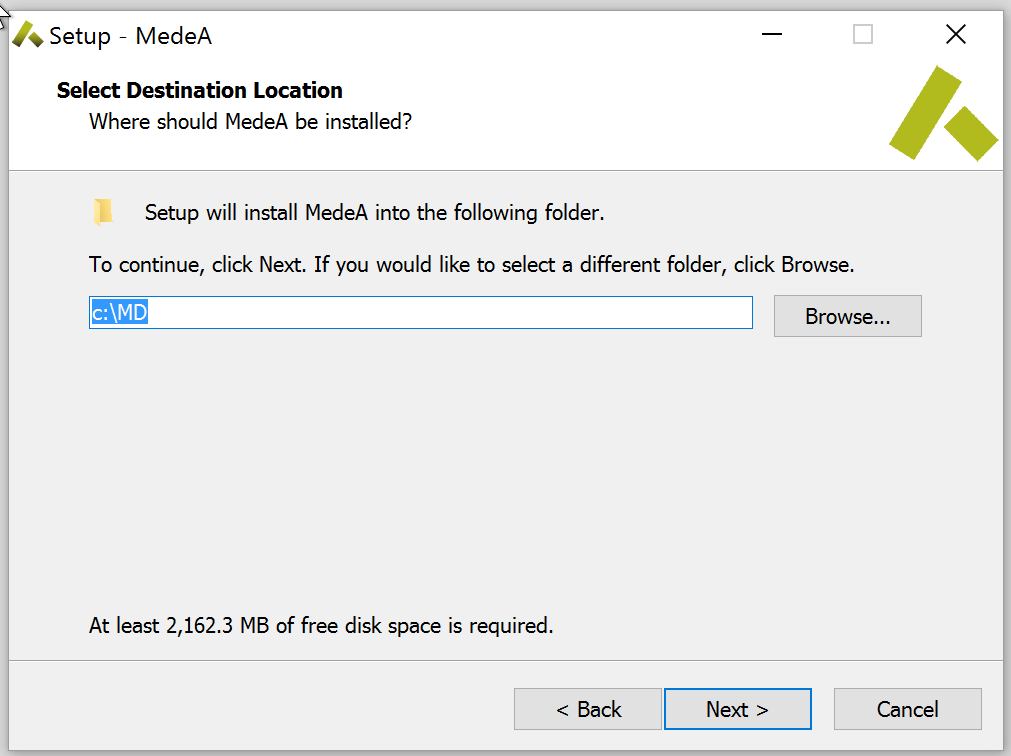
The next step is to select an installation directory:
Hint
It is best that no whitespaces exist in the installation path
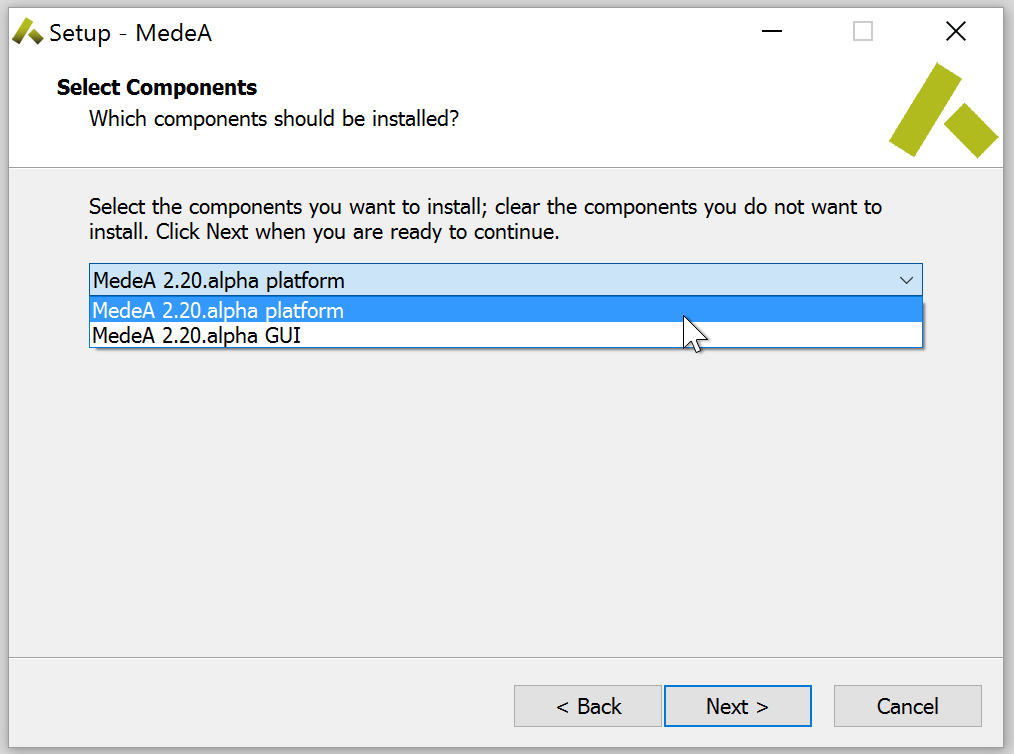
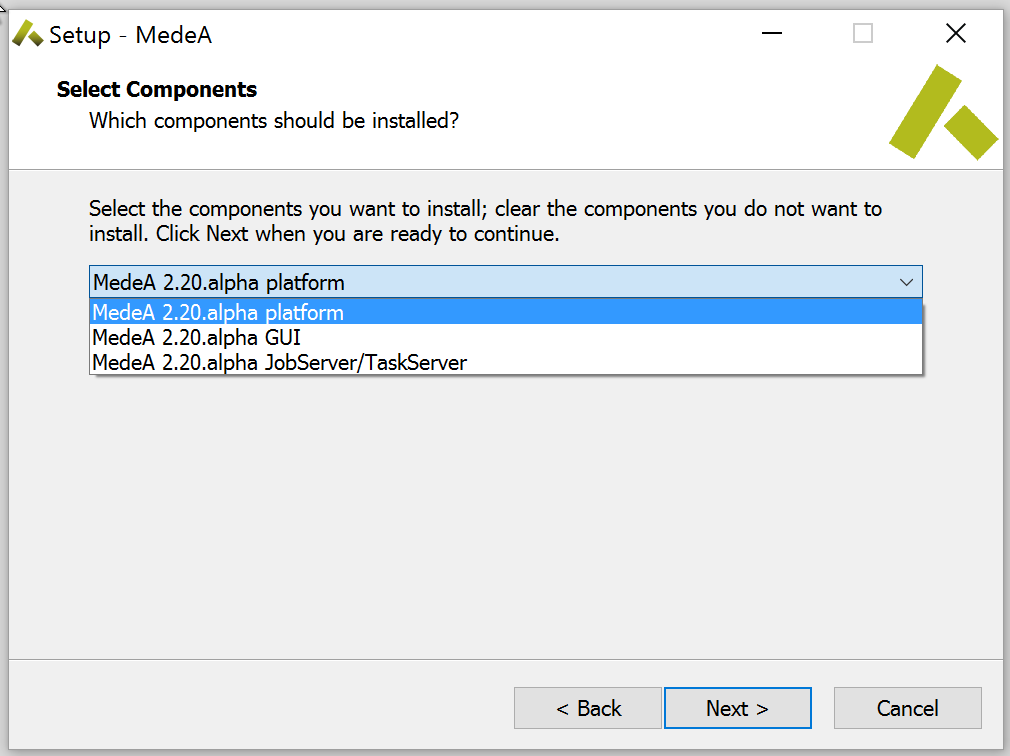
Then you can choose between the components to install: full *MedeA* platform or only GUI, if you have administrative rights (shown on the right), you can also select the JobServer / TaskServer to run in the background.
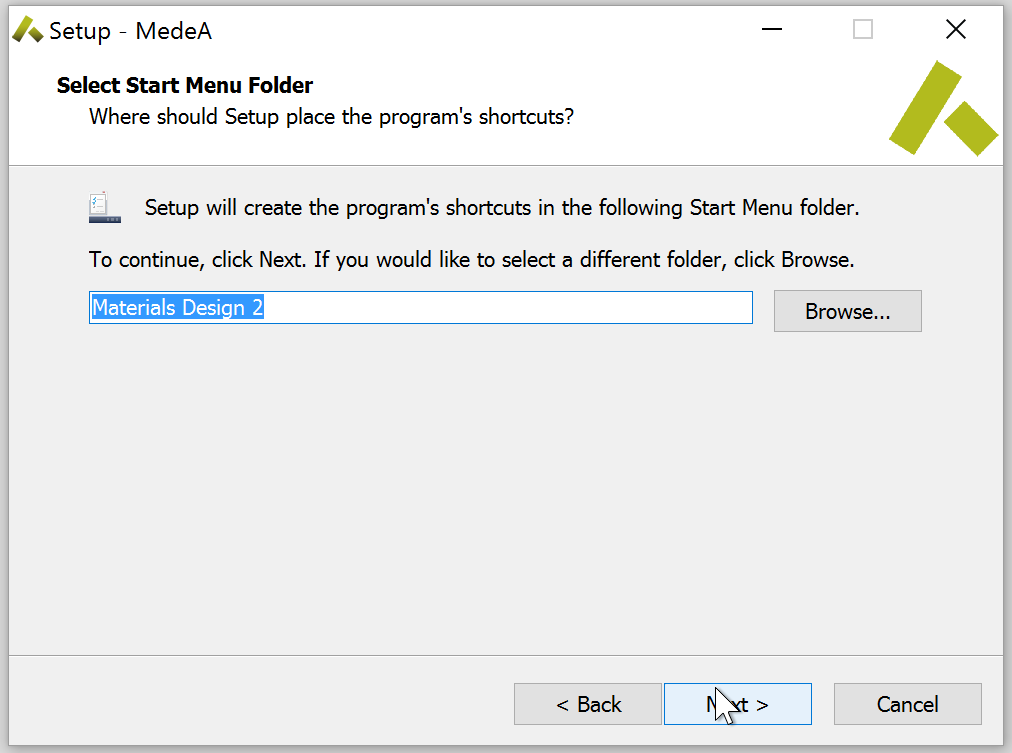
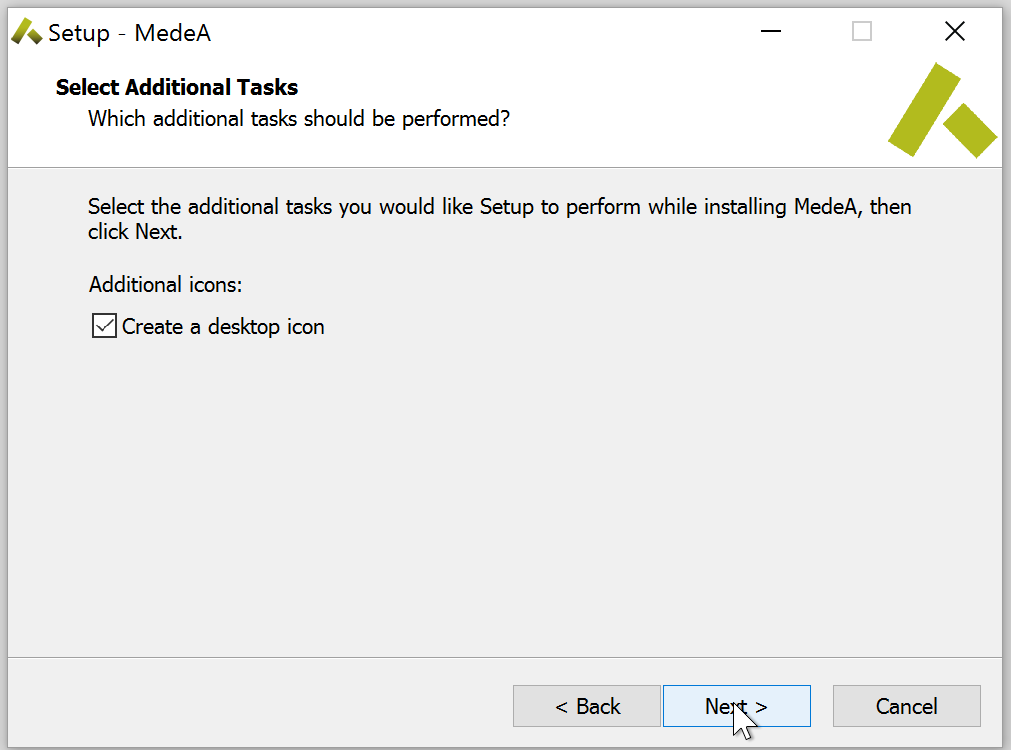
The next two screens ask where to create the shortcuts (Start Menu) and desktop icons:
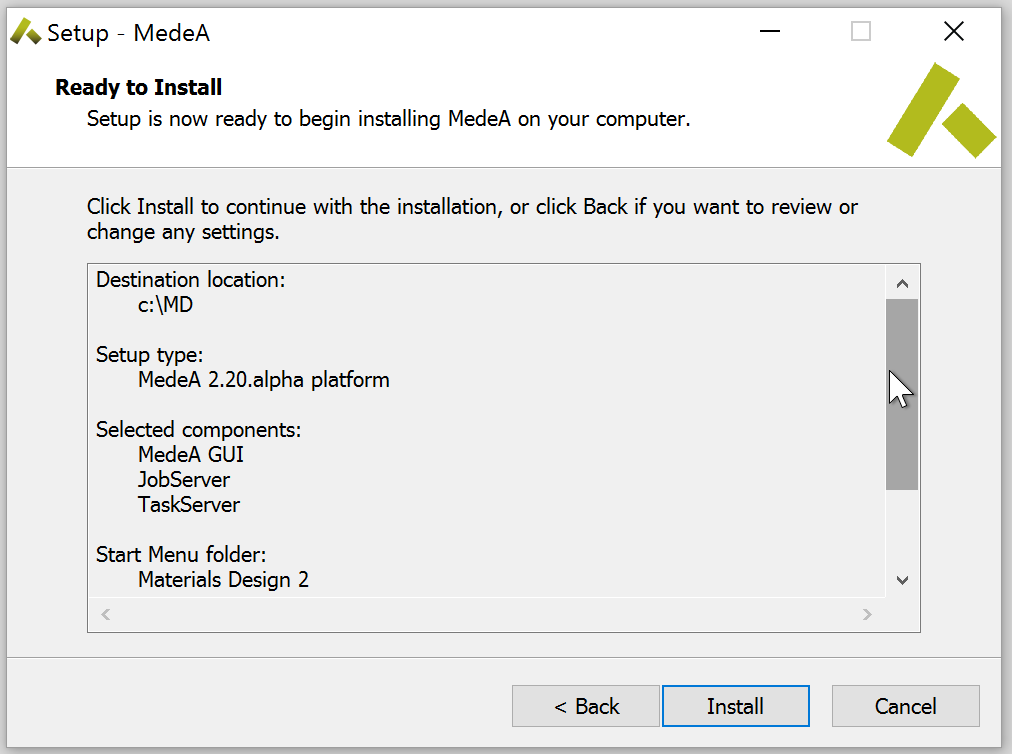
Once all the components and options are selected, you have a final chance to review them and continue with Install.
There can be a warning when the Intel Process Manager is already running. This is okay, it will just be updated to a newer version, but will still work with older versions of Intel MPI.
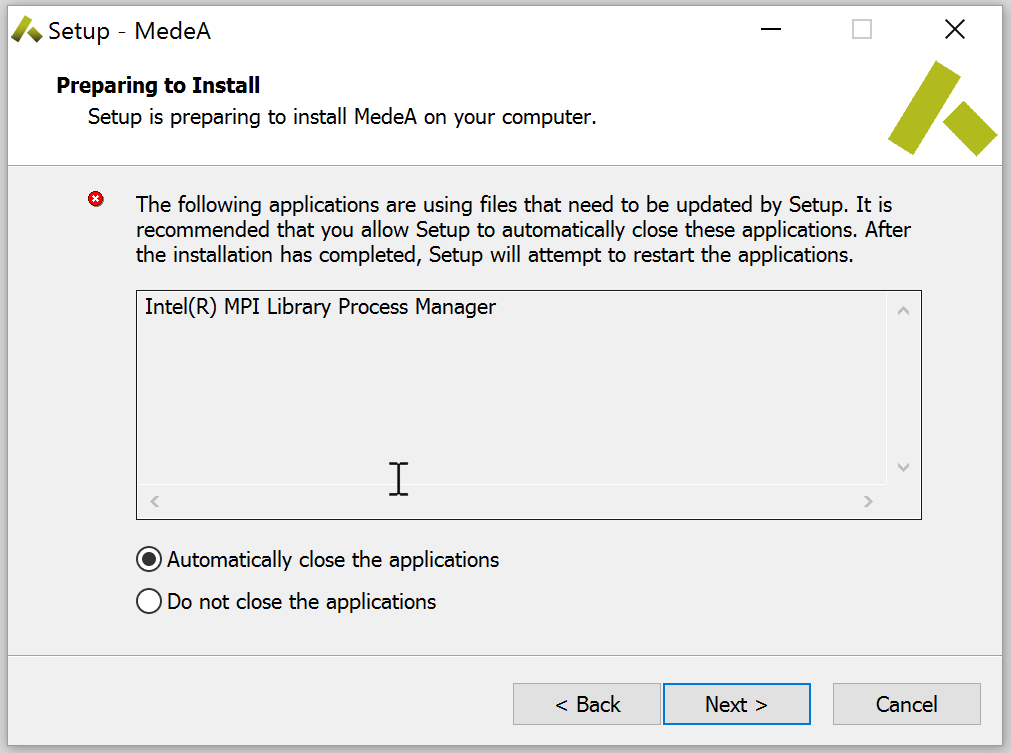
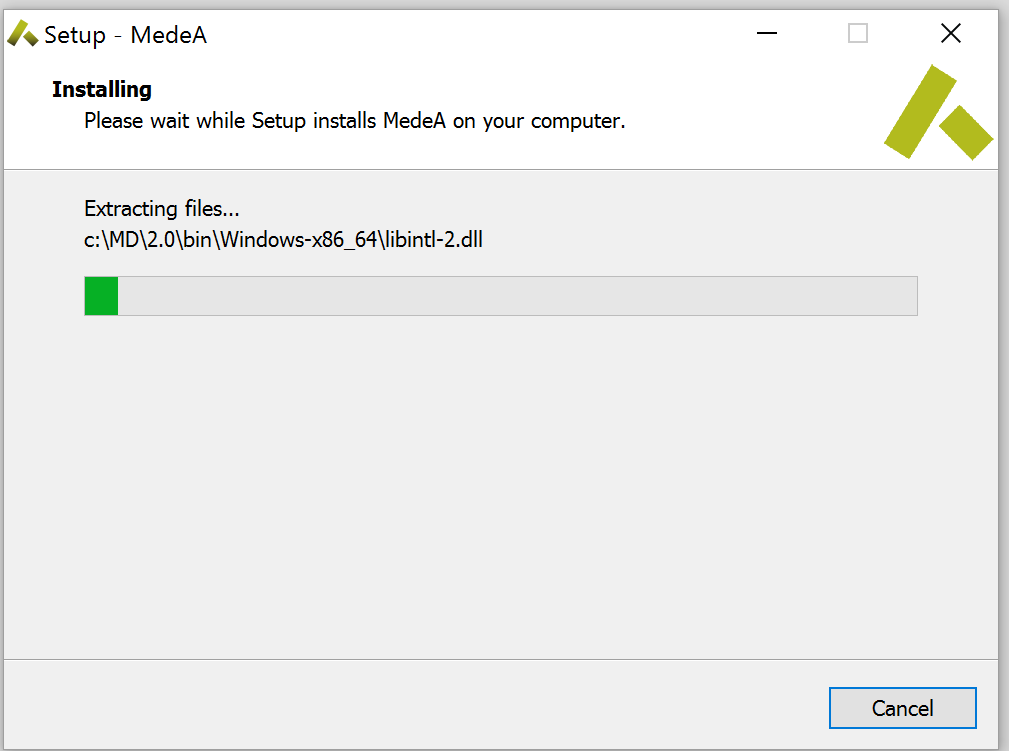
The installer displays its progress and shows depending on whether you install without (left) or with (right) administrative rights the final page. Just accept the default options to have a fully working MedeA platform after you click on Finish.
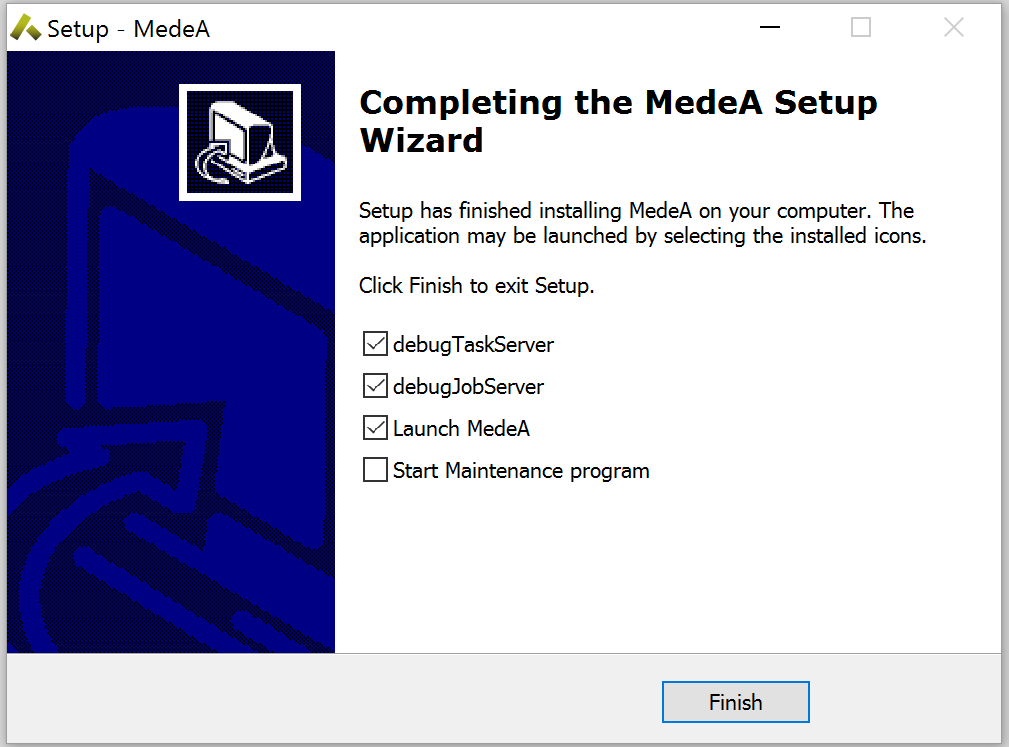
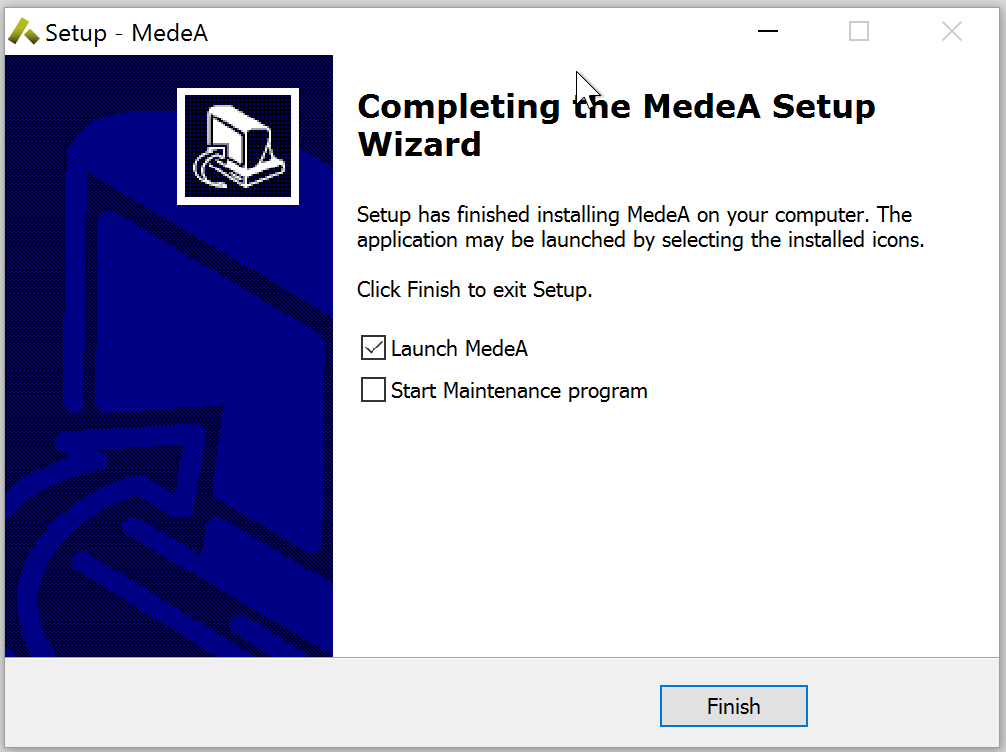
When installing without administrative rights, a local JobServer and TaskServer are launched. Keep in mind that you need to start them from the Start menu, once you log out of your account.
| download: | pdf |
|---|